MCP Server
CM evolveIT MCP Server
This document will cover the basics of the CM EvolveIT Dashboard managing AI in CM EvolveIT mode within the dashboard.
After completing this document, you should have a basic understanding of the CM evolveIT Dashboard AI Analysis.
1. How to open the AI Analysis Playground
1.1. Open from AI Icon
Open a new once or open the current existed AI playground


In case open from new page, AI Analysis Playground appear with empty content, you can pass any source code and request analysis.
1.2. Open from Code Viewer
+ From asset browser
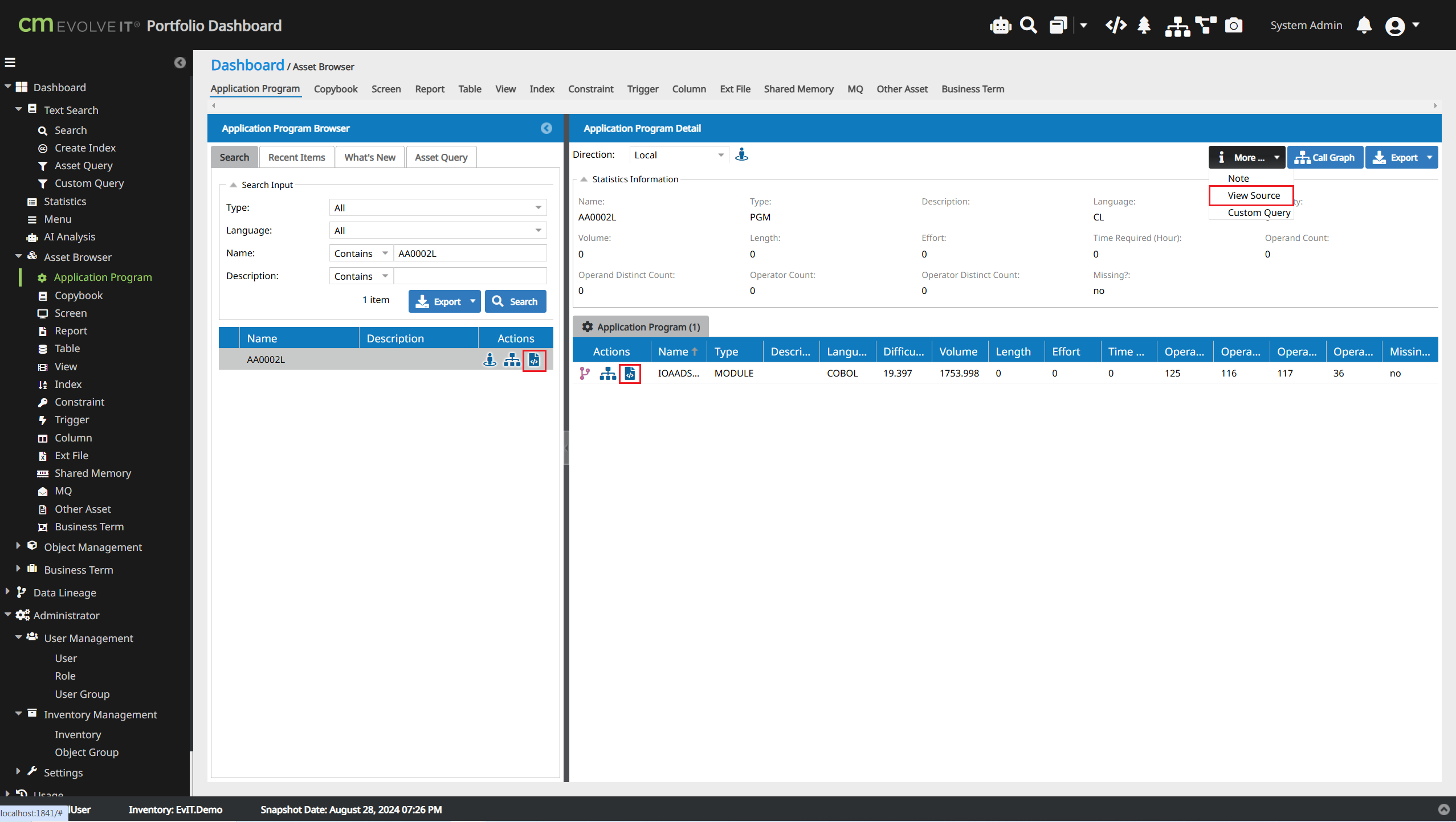
+ From graph viewer
+ From graph viewer
+ From text search
The code viewer windows will show related source code
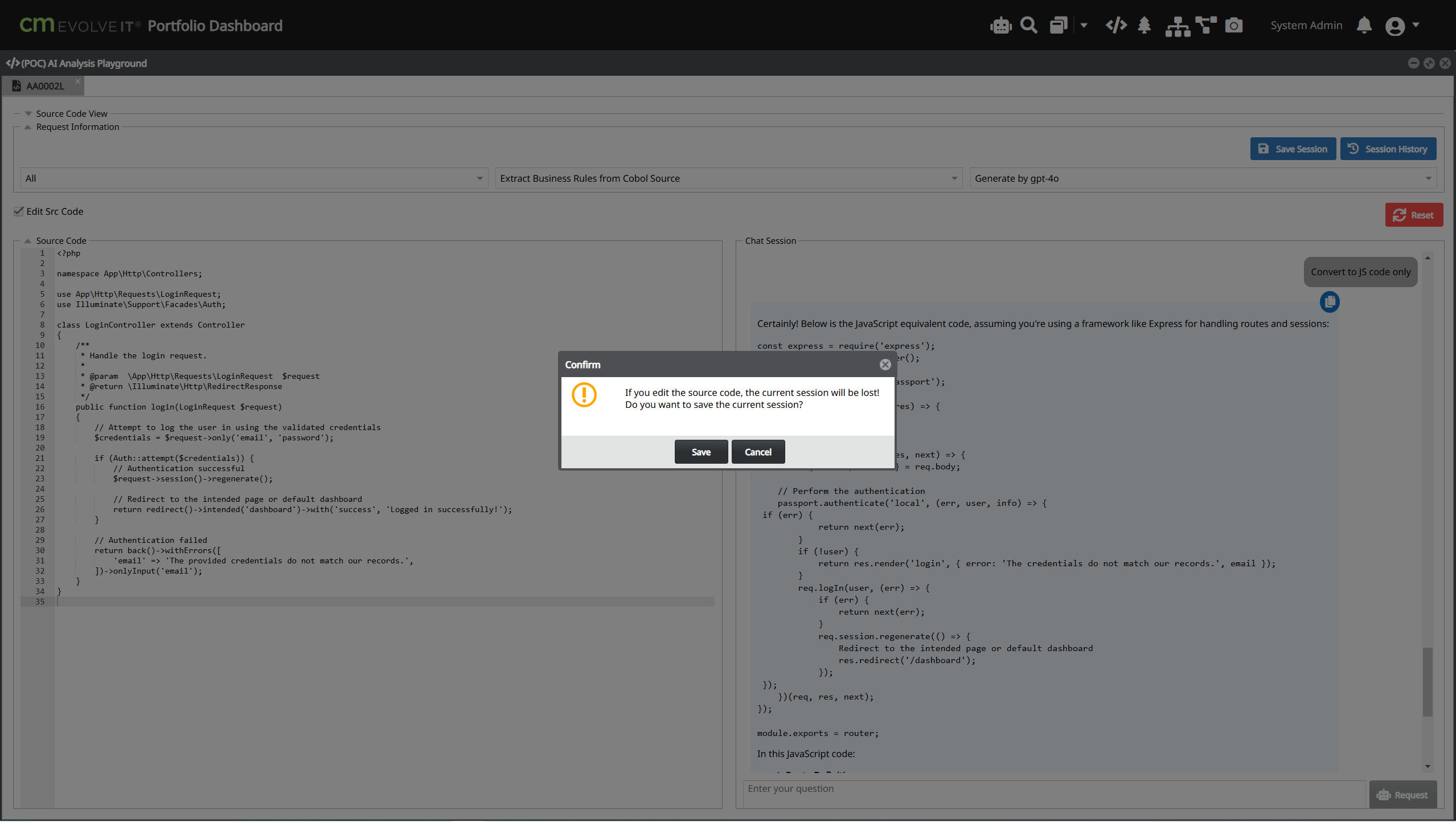
In case code viewer has source content, you can select content that you want to analysis, right click and choose open AI analysis button
AI Analysis Playground windows will appear with selected content
1.3. Open from Left Menu
Dashboard => AI Feature => AI Analysis
2. AI Analysis playground with Prompt
2.1. Unprompted: Free to chat with AI LLM based on the provided source code
2.2. Built-in Prompt: EvolveIT provied a lot of Built-In prompt. User can select them and click Analysis Source to play with AI support better
2.3. Custom Prompt: User can define a pre-prompt. After that, click Analysis Source to work with Custom Prompt
- How to define multiple Custom Prompt: Click on Advanced to open new pop-up. Press "Add Prompt" to add more Prompt.
- Beside that, user can Save current Custom Prompt as json file and Load it to use on next time
3. How to analyze content
There are many categories (1), each category has its own way of analyzing content (2) and AI model (3)
Select an analysis option then click Analysis Source to see the results
After analyzing the source code, you can ask more questions as a chat session.
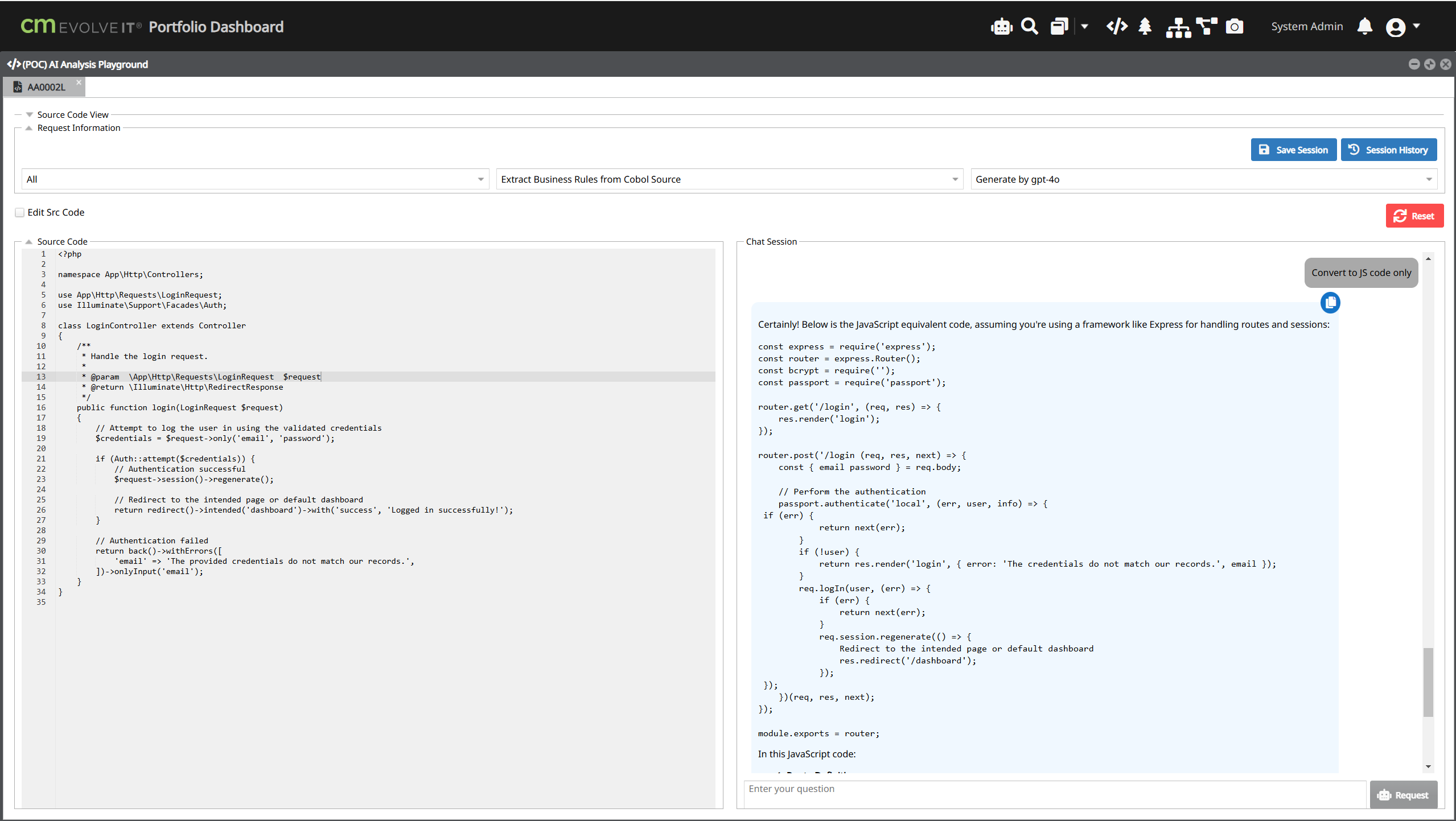
Save current session.
Load existing session history
If you want to try another category, you need to reset the current chat session by click reset button.
After analyzing the source code, the source code content will be set to read-only, in case you want to update the source code, please select the Edit Src Code checkbox.